

The opening animation of Macdio 3.2.2.
As of 16 November 2026, Macdio is a native internet radio and podcast app for iPhone Duo, Apple's first folding iPhone. It plays 60,000+ live stations and your podcasts in every pose of the device. Closed, it works as on any iPhone. Open, the library gets a sidebar with your lists and the player uses the whole inner display. Folded like a book, the artwork sits on one side of the fold and the controls, the synced lyrics or a podcast transcript on the other. Standing like a laptop, the player becomes a desk radio with your favorites as one-tap preset keys. Standing like a tent with the outer display facing you, Clock Mode becomes Radio StandBy, an analog clock beside what is playing. Split View works too. iPhone Duo support arrived in version 3.1, the opening animation and the desk radio in 3.2.2. It is the same one-time purchase as on every other Apple device.
It opens its wings
Open the Duo while something is playing and the Macdio logo spreads its wings across the fold, in the color of the artwork, then lands on the cover.
A desk radio
In the laptop pose the upright half shows the artwork, the title and the line being sung. The flat half has your favorites as preset keys.
Radio StandBy
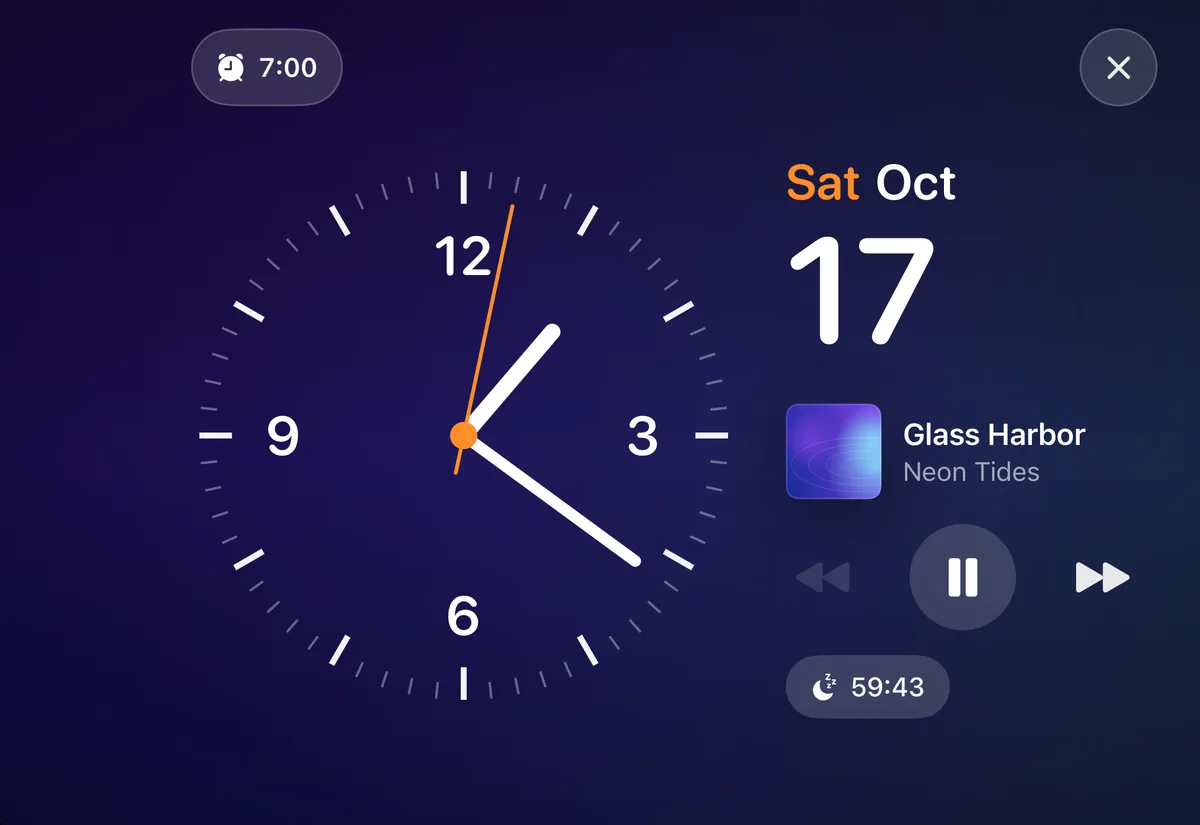
With the Duo standing like a tent, Clock Mode shows an analog clock, the date and what is playing.
What happens when you open an iPhone Duo with the radio on?
The station keeps playing and the Macdio logo appears on the fold. Its two wings open with the two halves of the phone, rings go out like radio waves in the color of the artwork, and the logo flies onto the cover of what is playing. It lasts about two seconds. When nothing is playing there is no animation, and Settings > Appearance > Opening Animation turns it off for good.
A desk radio in the laptop pose
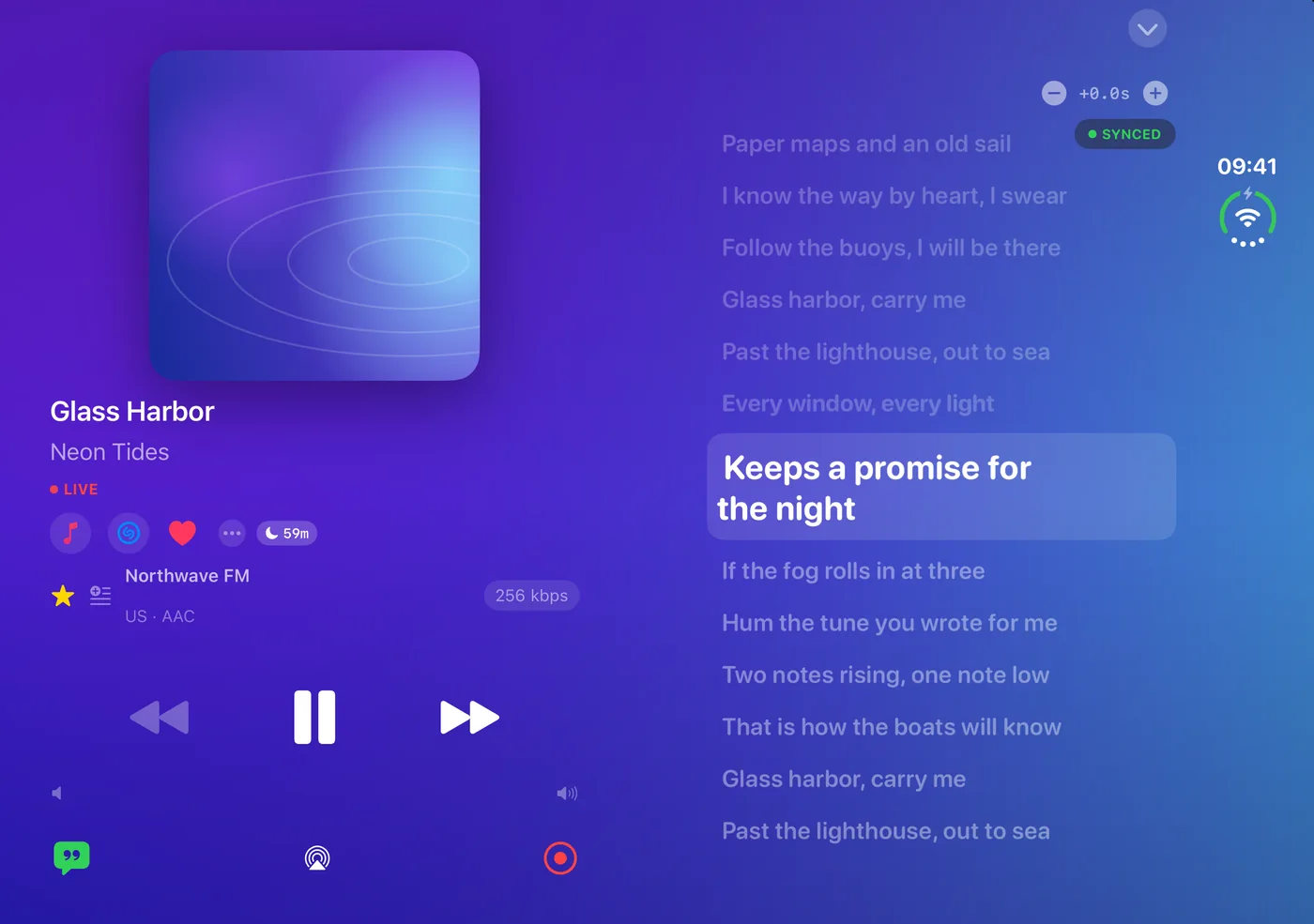
Stand the Duo on a table with the lower half flat. The upright half shows the artwork, the title in large type, the artist and, when the song has synced lyrics, the line being sung.
The flat half is the radio. Your favorites sit in a row of round preset keys, in the same order as in your Library, and the one that is playing has a ring around it. One tap changes the station. Under the keys are the sleep timer, Song ID, the transport buttons and the volume.
Like a book: the cover on one side, the lyrics on the other
Hold the Duo half open like a book and the player splits at the fold, with the artwork on one side and the controls on the other. Open the synced lyrics and they take a side of their own, with the line being sung in large type.
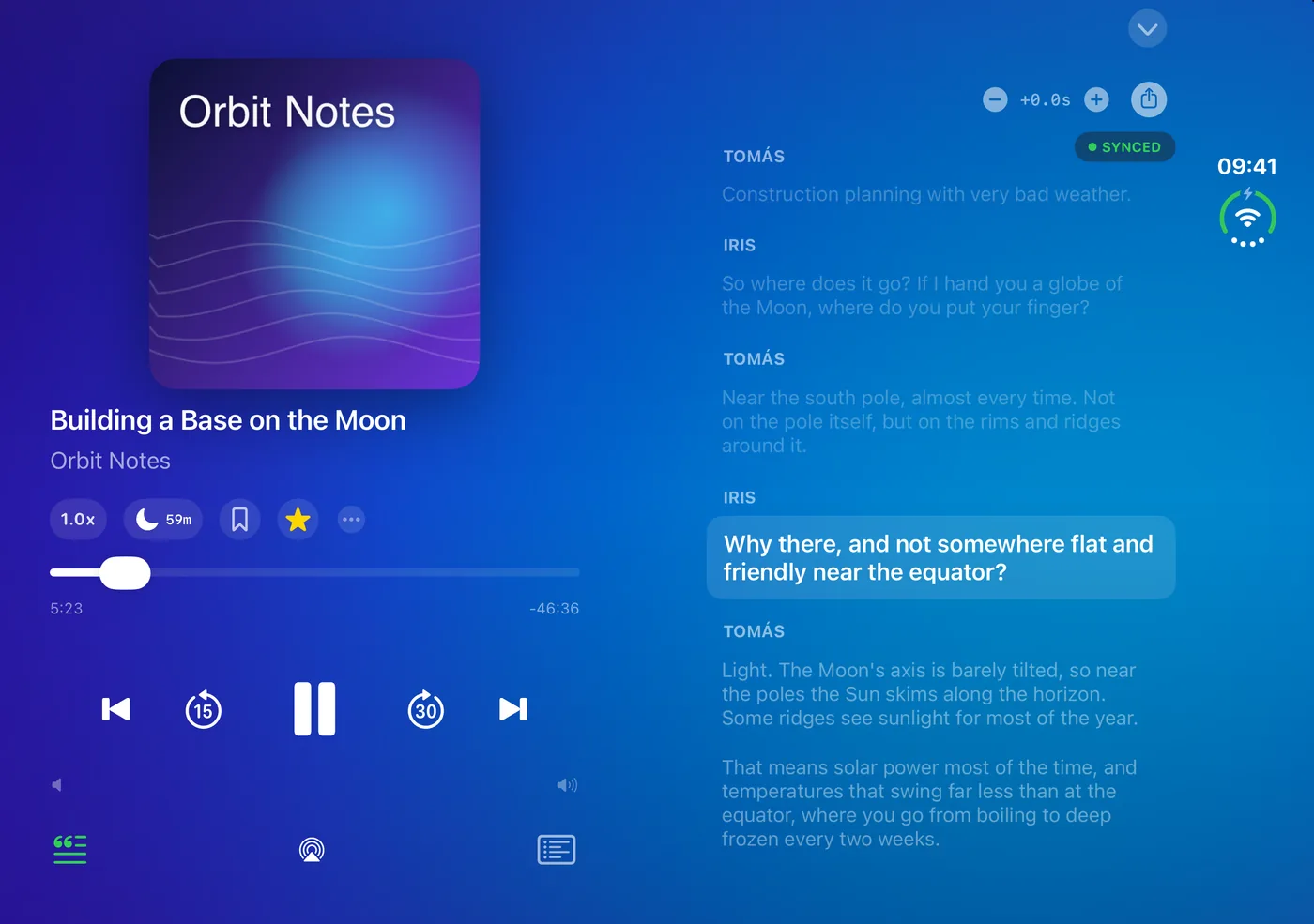
A podcast episode works the same way: the player on the left, the transcript on the right, with the spoken line marked as the episode plays.
Radio StandBy when the Duo stands like a tent
Stand the Duo on its edges like a tent, with the outer display facing you, and open Clock Mode. The outer display shows an analog clock on the left. On the right are the date, the cover and the title of what is playing, the transport buttons and the sleep timer.
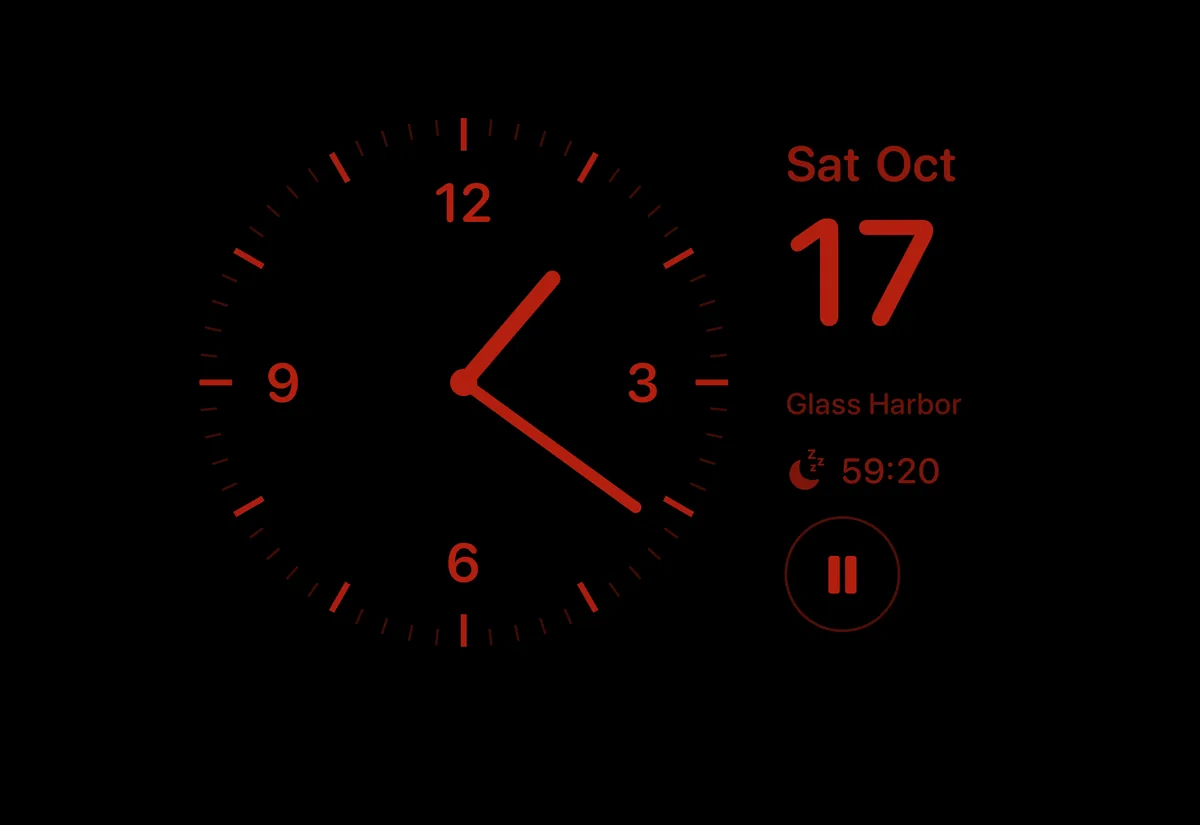
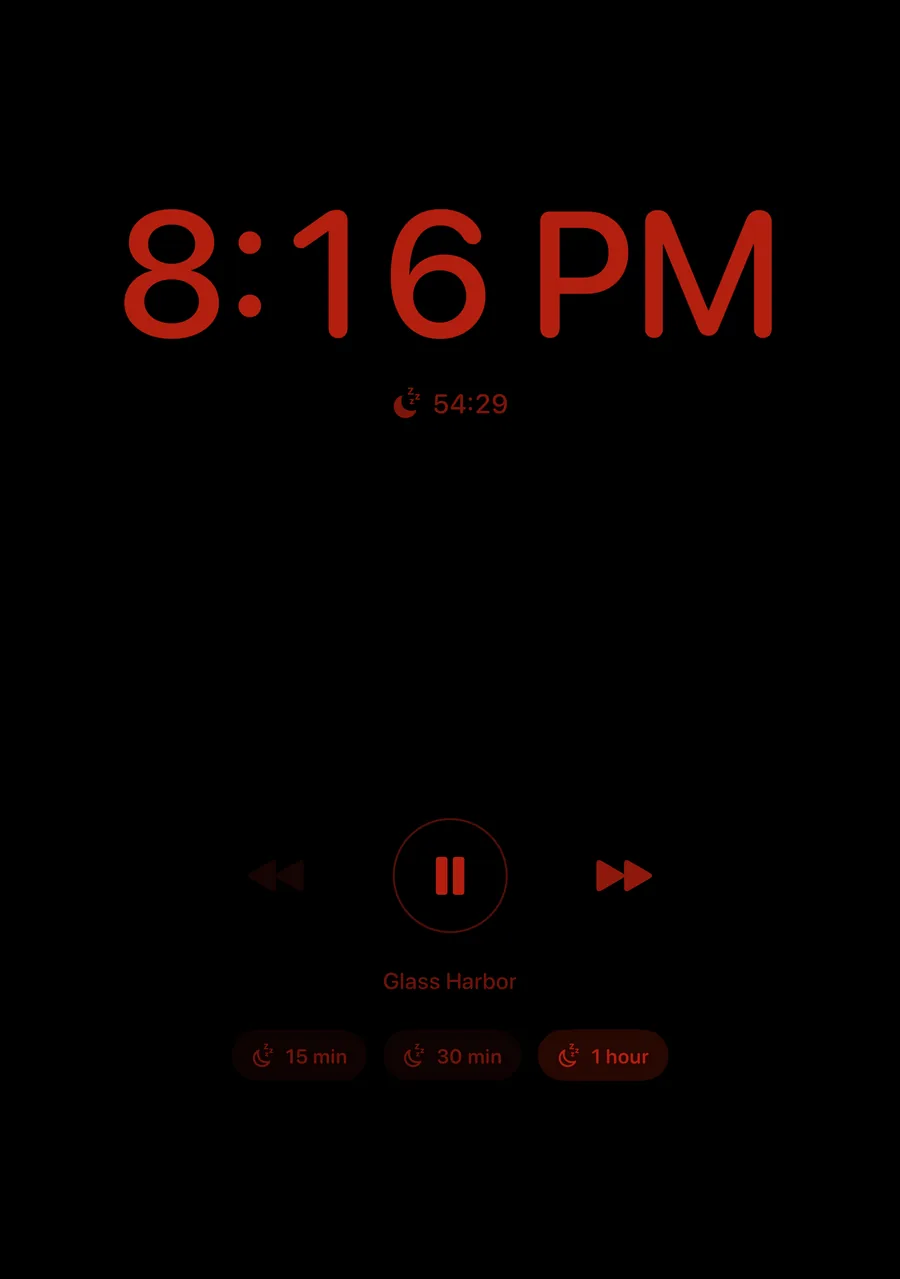
After a short while without a touch it dims to night red. Play and pause still work then, without lighting the screen again.
A night deck for the nightstand
In the laptop pose Clock Mode puts the clock on the upright half. When it dims, the half on the table turns into a dim red control deck: previous, play or pause, next, the title of the song, and sleep timer keys for 15 minutes, 30 minutes and 1 hour.
The keys work in the dark, so pausing the radio at night does not light up the room.
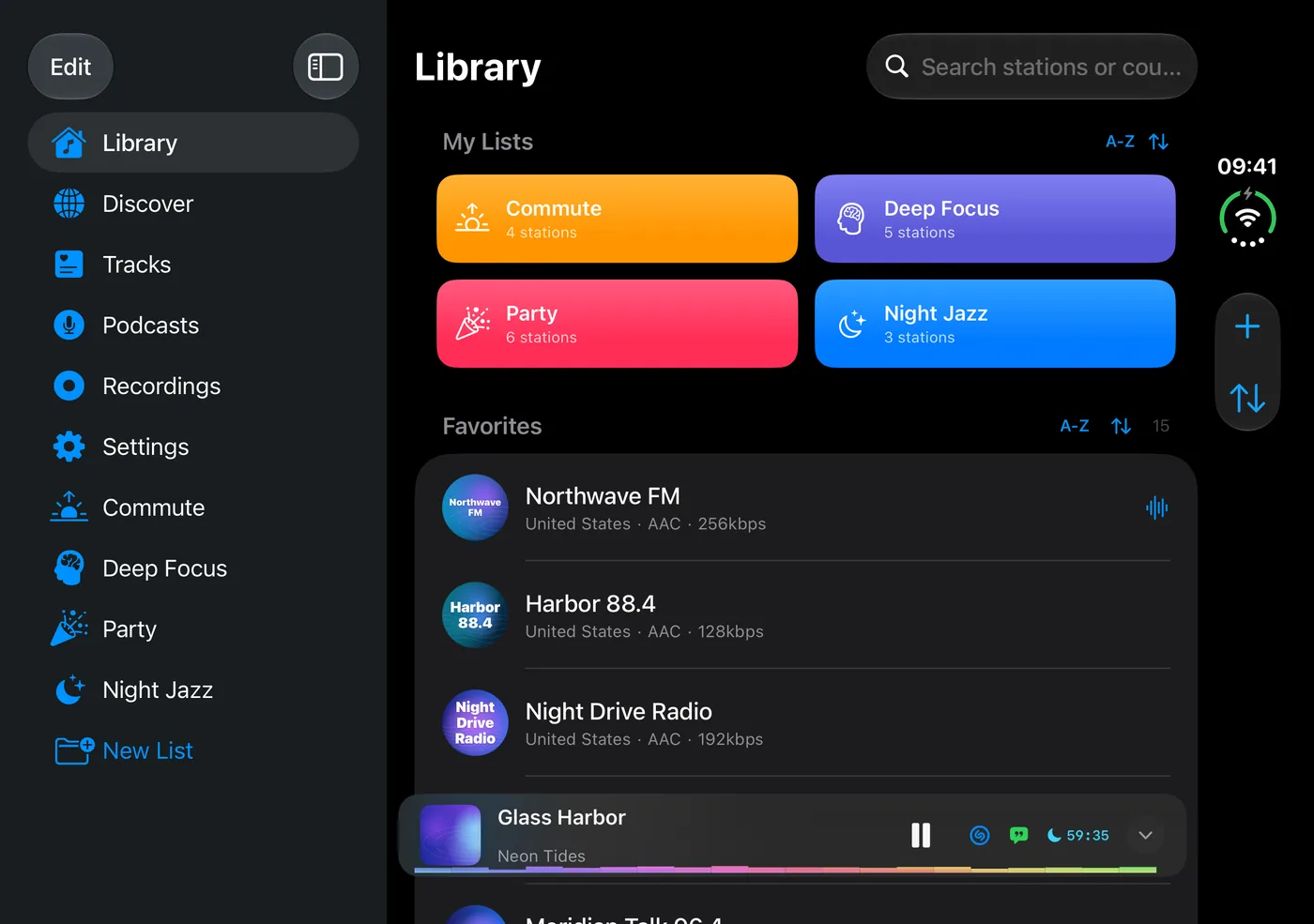
The whole library on the inner display
Open flat, Macdio shows a sidebar with every tab and your own lists under them, and a New List button below the lists. Station grids use the extra width, and the mini player stays inside the content column instead of covering the sidebar.
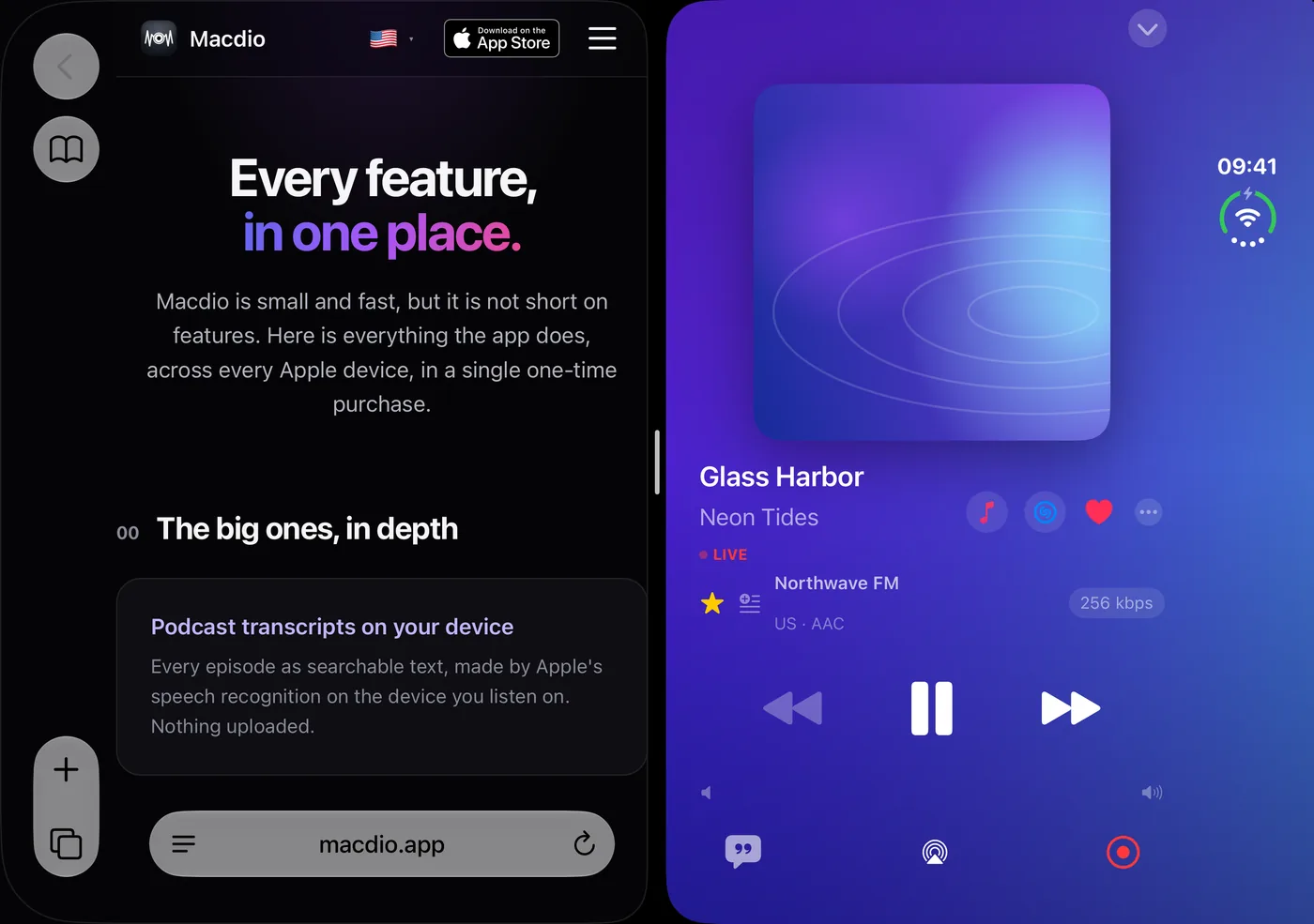
Split View with another app
iPhone Duo runs two apps side by side, and Macdio fits the narrow half: the tabs, the mini player and the full player are all there. Keep the radio beside Safari while you read. A second Macdio window opens on the inner display too.
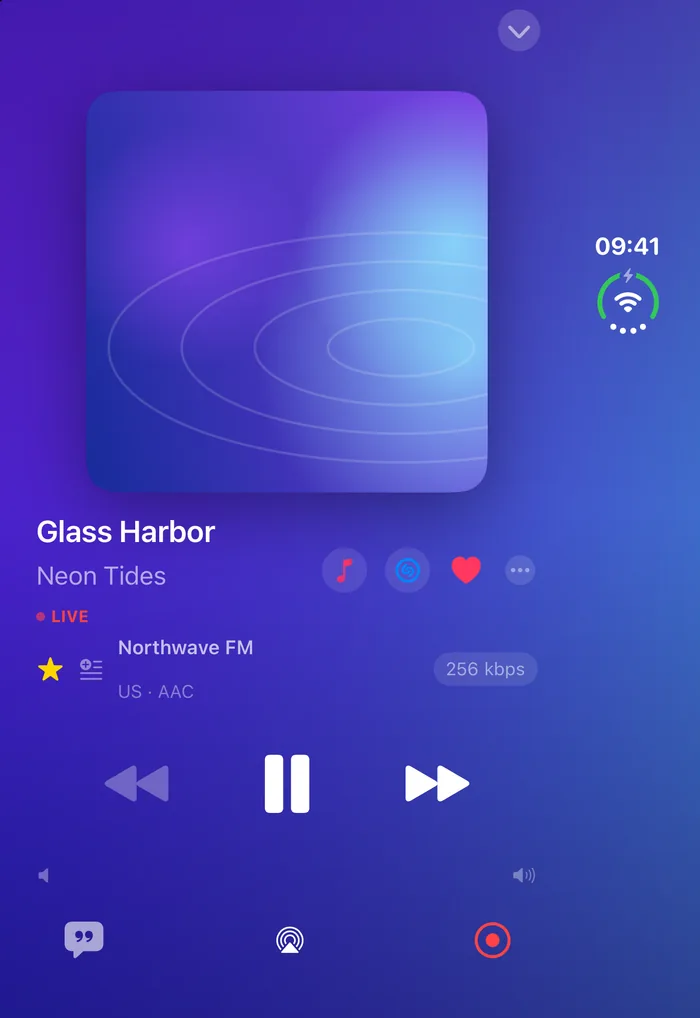
Closed, it is the Macdio you know
On the outer display Macdio works as on any iPhone: Library, Discover, Podcasts, the player, lyrics and Clock Mode, with the tabs along the side of the screen. Whatever is playing keeps playing when you open the phone, and the player and the lyrics move to the inner display with you.
Every pose at a glance
| Pose | Display | What Macdio shows |
|---|---|---|
| Closed | Outer | The iPhone layout, with the tabs along the side |
| Standing like a tent | Outer, sideways | Radio StandBy in Clock Mode: analog clock, date, what is playing |
| While it opens | Outer to inner | The opening animation, when something is playing |
| Open flat | Inner | A sidebar with tabs and lists, wider grids, the player across the display |
| Half open like a book | Inner | Artwork on one side of the fold; controls, lyrics or a transcript on the other |
| Standing like a laptop | Inner | The desk radio: artwork and title above, preset keys and controls below. In Clock Mode, a night deck |
| Split View | Half of the inner display | Tabs, mini player and full player in the narrow half |
Common questions
Does Macdio work on iPhone Duo?
Do I have to buy Macdio again for iPhone Duo?
What happens when I open the iPhone Duo while the radio is playing?
Can I turn the opening animation off?
How do I get the desk radio?
What is Radio StandBy?
Does Macdio work in Split View on iPhone Duo?
Which version do I need?
Get it
Macdio is on the App Store as a one-time purchase, with no subscription and no in-app purchases. Install it on your iPhone Duo and open the phone while a station plays.